 Puchne
Quick start
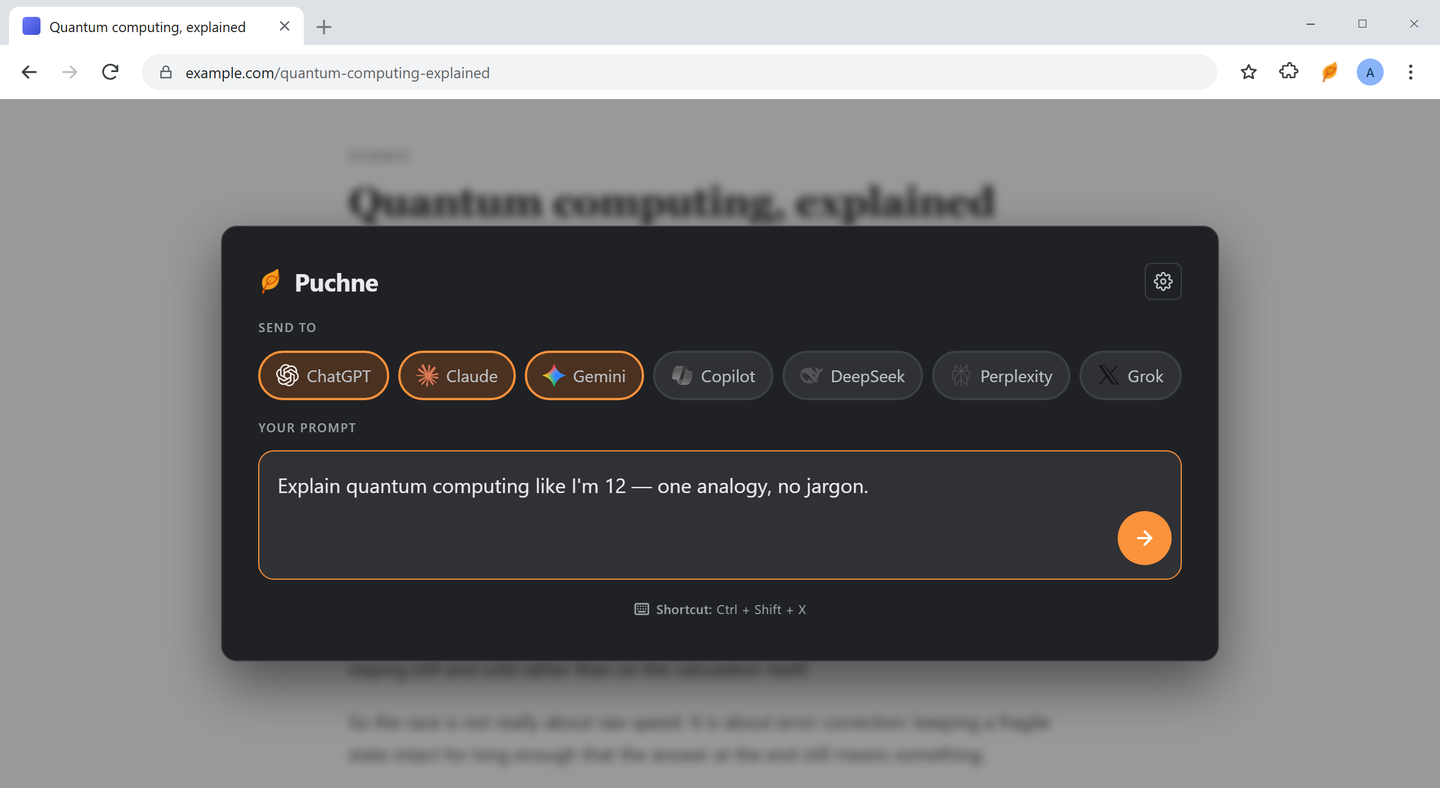
Open
CtrlShiftX
Pick
Tap chips.
Send
Enter
Sending a prompt
| Key | Does |
|---|---|
| Enter | Send |
| Shift + Enter | New line |
| Esc | Close, don't send |
Grid view


Hover a column to try it
| Control | Does |
|---|---|
| Hover a column | Expands it, then settles back |
| ⤢ in the header | Expands without hovering |
| × in the header | Drops it; space goes to the others |
| Bottom bar | Re-opens a closed tool |
| Reset layout | Equal widths again |
New tabs mode
- Settings → Behavior
Right-click the Puchne icon → Options.
- Opening Mode → New Tabs
Grid-only options disappear.
- Turn on Group Tabs
One tab group per send.
- Turn on Cycle Tabs Once
Wakes sites that only load when viewed.
Follow-ups
One box → every tool that's already open.
Ask from any page
- Select the text
Nothing selected? It asks about the page.
- Right-click → Ask Puchne
Or Ctrl + Shift + S.
- Choose the behaviour once
In Settings → Ask Puchne: show the prompt, or send it directly.
Recent prompts
| Want to… | Go to |
|---|---|
| Reuse one | Click it under the box |
| Keep more or fewer | Behavior → History Limit (5–100) |
| Hide the list | Appearance → Prompt History |
| Delete everything | Maintenance → Clear History |
Add your own tool
- Right-click the chat box → Inspect
On the tool's own page, signed in.
- Copy something stable
An
id, thendata-testid. Never a generated class name. - Fill the form and press Test
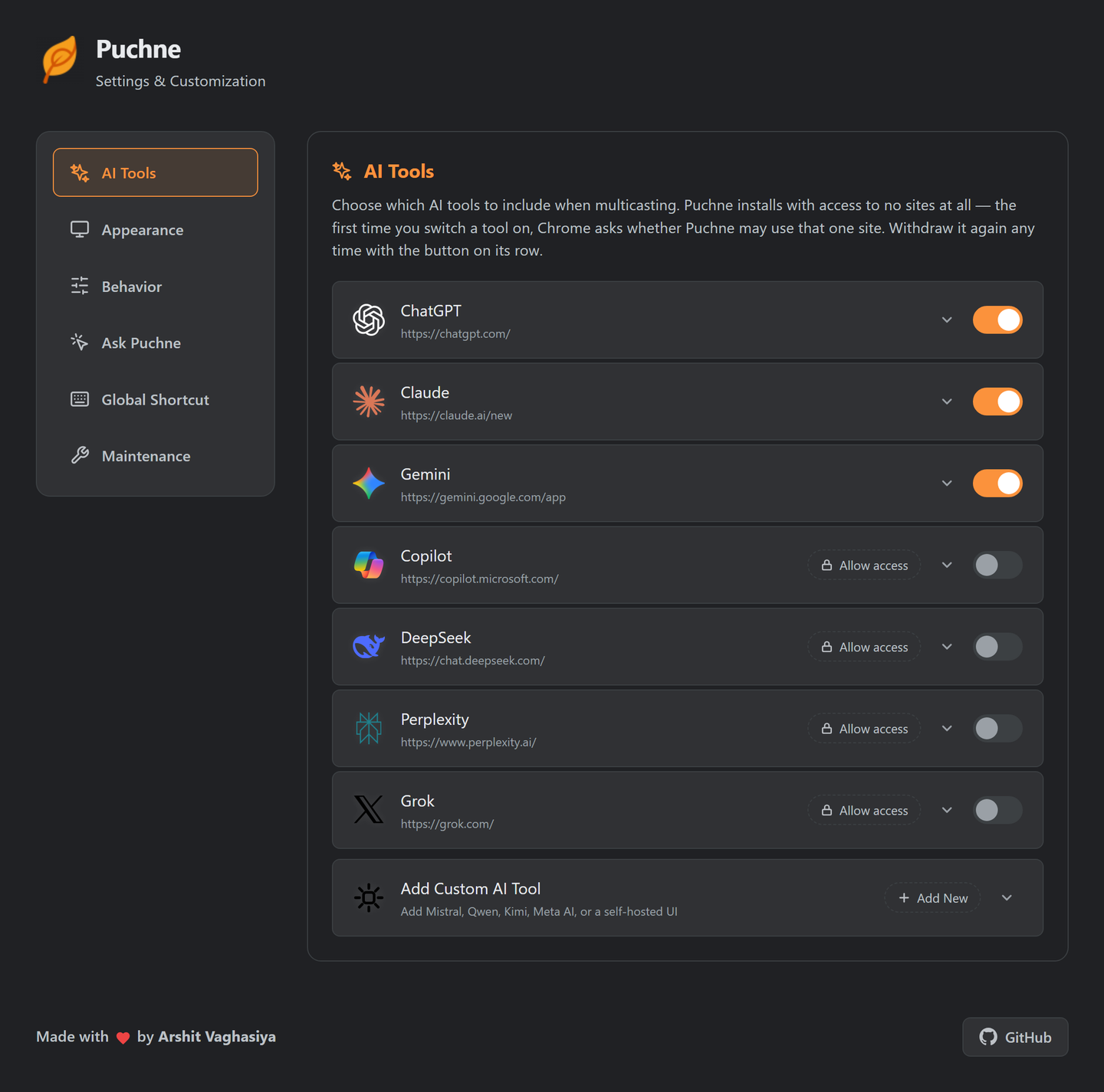
Settings → AI Tools → Add Custom AI Tool.
| Field | Example |
|---|---|
| Name | Mistral |
| URL | https://chat.mistral.ai/chat |
| Input selector | textarea[name="message"] |
| Button selector (optional) | button[type="submit"] |
| Input type | Textarea · Contenteditable · ProseMirror |
| Submit type | Auto · Enter · Button · Both |
Fix a broken tool
Opens but doesn't type? The site moved its box. One minute to fix.
Site access
| Action | Where |
|---|---|
| Grant | Chrome asks the first time you use a tool |
| Check | The tool's row in Settings → AI Tools |
| Withdraw | The access button on that row |
| Revoke all | Remove the extension |
Change the shortcuts
- Settings → Global Shortcut
Shows what's bound now.
- Click “Change Shortcuts”
Or paste
chrome://extensions/shortcuts— pages can't link there. - Click the pencil, press your keys
Pick Global to use it outside Chrome.
chrome:// page, the Web Store or a new tab — extensions can't run there.
Prompting for comparison
Worked examples: use cases.
Keyboard
| Key | Where | Does |
|---|---|---|
| Ctrl + Shift + X | Any page | Open Puchne |
| Ctrl + Shift + S | Any page | Ask about the selection |
| Enter | Prompt box | Send |
| Shift + Enter | Prompt box | New line |
| Esc | Overlay | Close |
| Tab | Overlay | Move focus (stays inside) |
| Space | On a chip | Toggle that tool |
macOS uses Control, not Command.